Configure models with Ollama
Ollama is a simple way to run local LLMs without a full vLLM or GPU stack. Ollama exposes an OpenAI-compatible API on port 11434, which Semantic Router can use as a model backend during first-run setup or in hand-authored YAML.
This guide walks through:
- Installing Ollama and pulling a model on your host
- Making the Ollama API reachable from Docker
- Registering the model in the Semantic Router setup dashboard
- Activating the config and sending a test request
Semantic Router runs in Docker during vllm-sr serve. The name
host.docker.internal resolves the host from the container, but it does not
make a loopback-only Ollama server reachable. Complete the bind-address step
below before starting Semantic Router.
Prerequisites
- Semantic Router installed and runnable with
vllm-sr serve(Linux, macOS, or WSL2 with Docker) - Ollama installed on the same machine that runs Docker
- Enough disk space for at least one model (for example,
llama3.2:3bis about 2 GB)
1. Install Ollama
Install Ollama from ollama.com/download for your platform, then confirm the CLI is available:
ollama --version
On Linux you can also use the install script:
curl -fsSL https://ollama.com/install.sh | sh
Ollama starts a background service automatically. It listens on
http://127.0.0.1:11434 by default, which is reachable from the host but not
from a Docker container.
2. Make Ollama reachable from Docker
Set OLLAMA_HOST=0.0.0.0:11434, then restart Ollama. The exact way to set the
environment variable depends on how Ollama is installed.
On Linux with the standard systemd service:
sudo systemctl edit ollama.service
Add the following override, save it, and restart the service:
[Service]
Environment="OLLAMA_HOST=0.0.0.0:11434"
sudo systemctl daemon-reload
sudo systemctl restart ollama
On macOS, quit the Ollama application, set the launch environment, and reopen the application:
launchctl setenv OLLAMA_HOST "0.0.0.0:11434"
On Windows, quit Ollama, add the user environment variable OLLAMA_HOST with
the value 0.0.0.0:11434, and restart Ollama from the Start menu. The
Ollama server FAQ
has the current platform-specific steps.
For WSL, follow the Windows steps when Ollama is the Windows application, or the Linux steps when the server itself runs inside the WSL distribution.
Ollama's local API does not require authentication. Binding to 0.0.0.0 can
give other hosts access to model listing and generation. Restrict TCP port
11434 to the container bridge, host gateway, or other trusted local sources,
and never publish it to an untrusted network.
3. Pull a model
Pull a model tag from the Ollama library. This example uses llama3.2:3b, a small general-purpose model that works well for local testing:
ollama pull llama3.2:3b
List locally available models:
ollama list
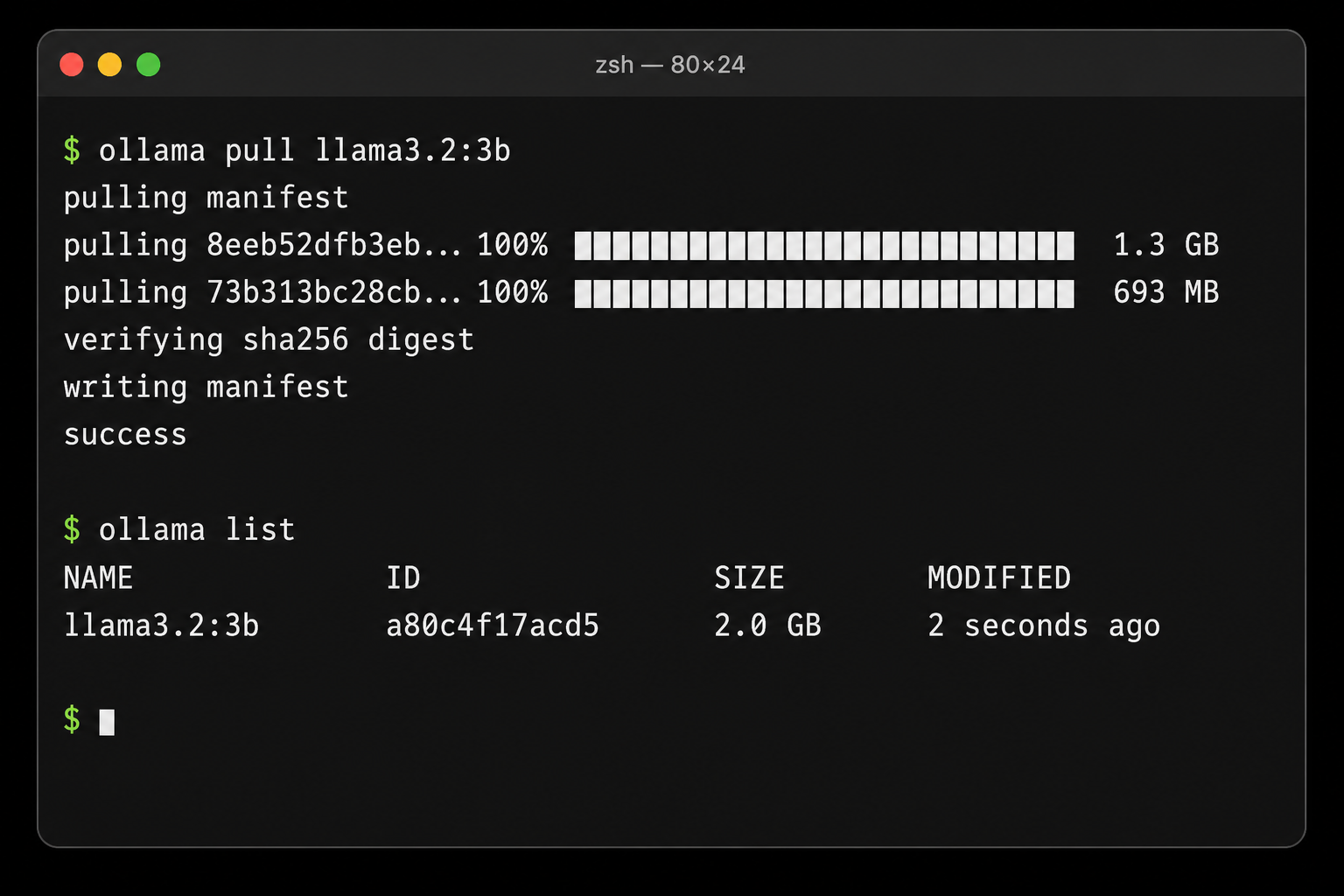
Use the exact Ollama tag (for example llama3.2:3b, qwen2.5-coder:7b) as the model name in Semantic Router. The router forwards that name to Ollama unchanged.
4. Verify Ollama is serving
Before opening the Semantic Router dashboard, confirm Ollama responds on the host:
curl http://localhost:11434/v1/models
Send a quick chat completion:
curl http://localhost:11434/v1/chat/completions \
  -H "Content-Type: application/json" \
  -d '{
    "model": "llama3.2:3b",
    "messages": [{"role": "user", "content": "Say hello in one sentence."}]
  }'
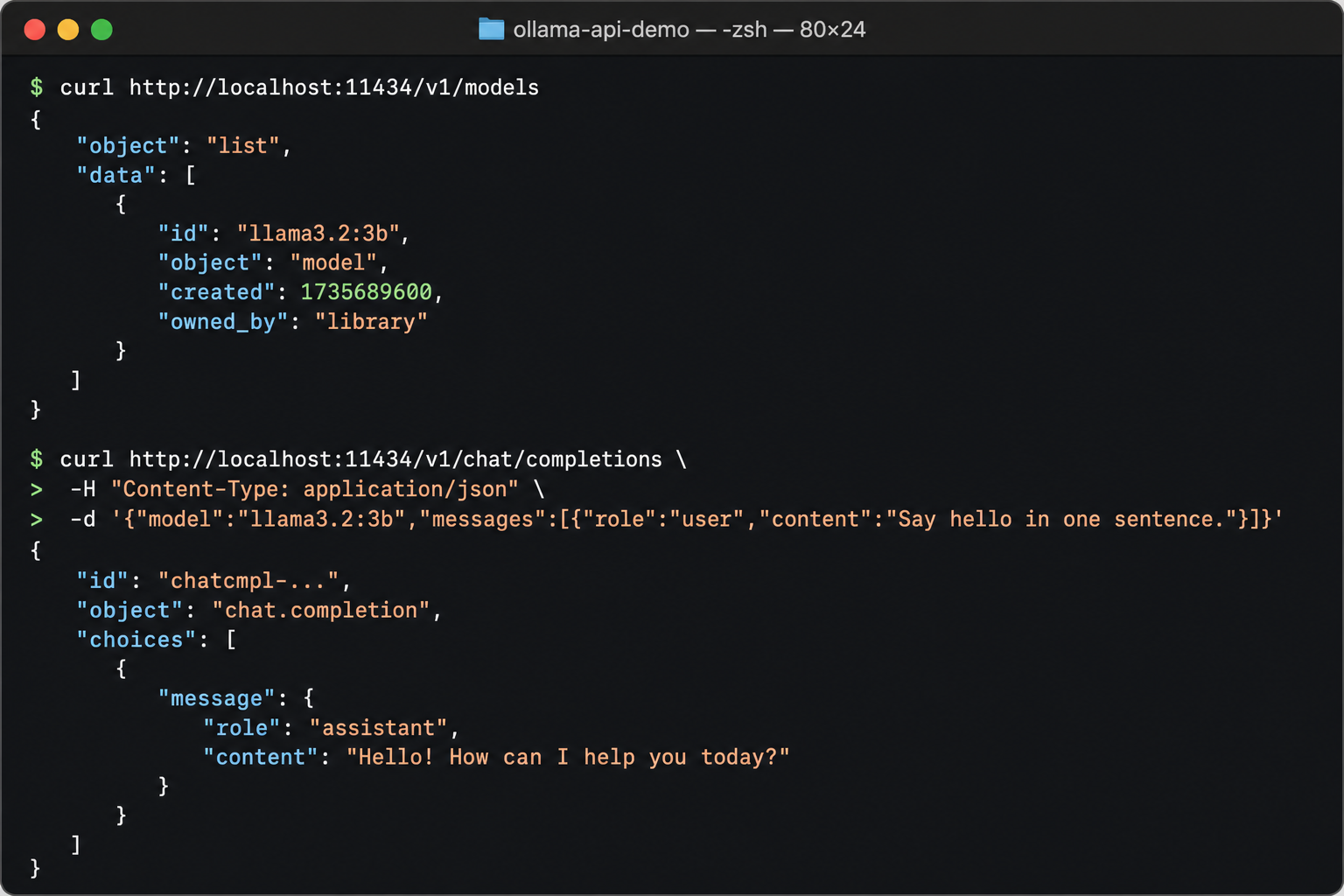
If either command fails, fix Ollama on the host before continuing. Semantic Router cannot reach a backend that is not already serving on port 11434.
Then verify the address that the Router container will use:
docker run --rm \
  --add-host=host.docker.internal:host-gateway \
  curlimages/curl:8.12.1 \
  http://host.docker.internal:11434/v1/models
If the host check succeeds but the container check fails, recheck
OLLAMA_HOST and the host firewall before continuing.
5. Configure the model in the setup dashboard
Start Semantic Router (or use the instance already started by the installer):
vllm-sr serve
If config.yaml does not exist yet in the current directory, the dashboard opens in setup mode at http://localhost:8700.
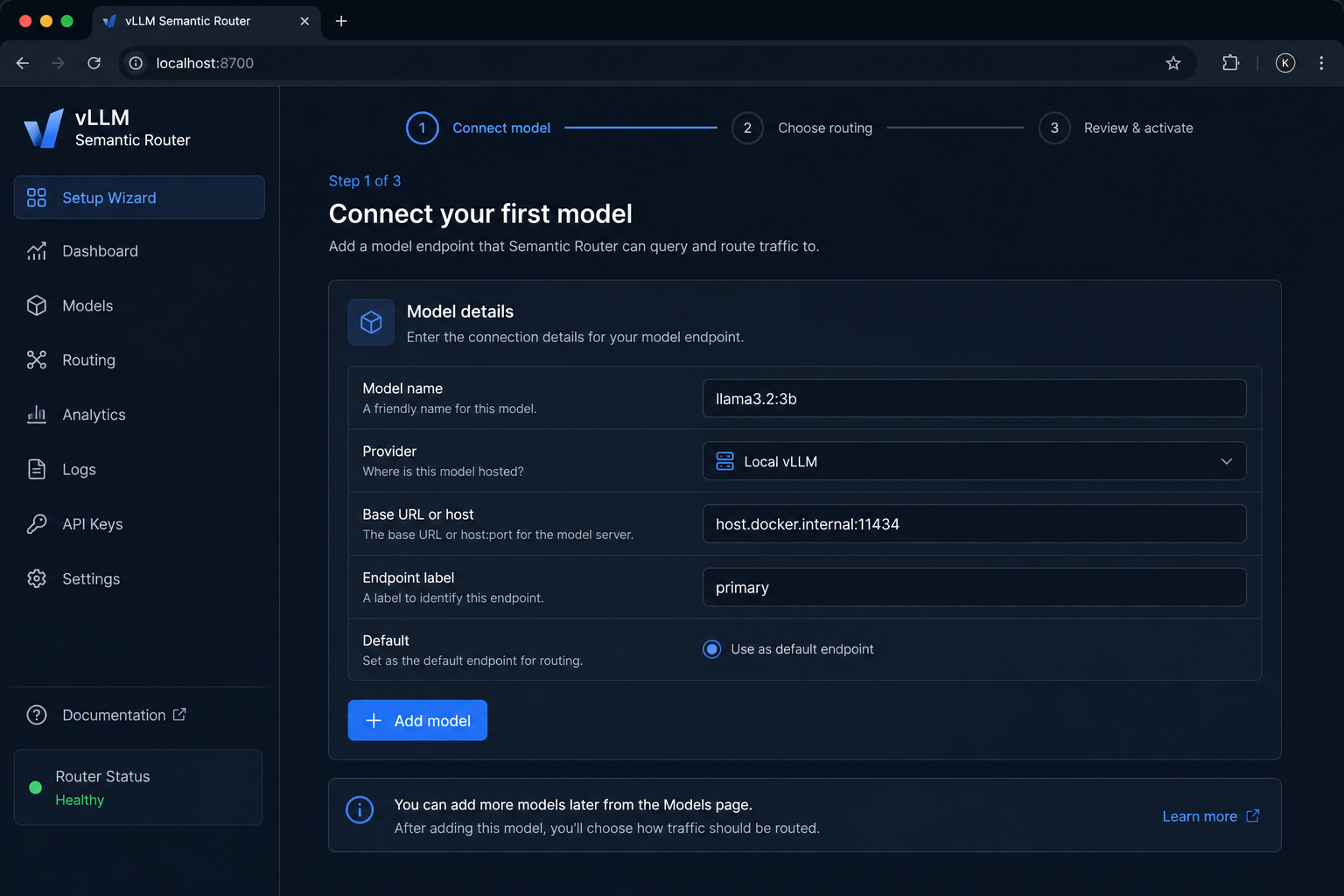
On Step 1 — Connect model, register your Ollama model:
| Field | Value |
|---|---|
| Model name | Your Ollama tag, for example llama3.2:3b |
| Provider | Local vLLM |
| Base URL or host | host.docker.internal:11434 |
| Endpoint label | primary (or any short label) |
| Default | Select this model if it is your only backend |
Why Local vLLM and not OpenAI-compatible API?
- Ollama serves an OpenAI-compatible surface at
/v1/chat/completions. - Local vLLM writes the host and protocol you enter as an
endpointbackend reference, so enterhost.docker.internal:11434explicitly.
Alternatively, choose OpenAI-compatible API and enter
http://host.docker.internal:11434/v1; that provider type writes a base_url.
Both paths use Ollama's OpenAI-compatible API.
Click Continue when the model card validates.
6. Choose routing and activate
On Step 2 — Choose routing, keep the Single-model baseline if you only registered one Ollama model. You can import a preset or remote config later when you add more backends.
On Step 3 — Review & activate, confirm the model summary, then click Activate configuration.
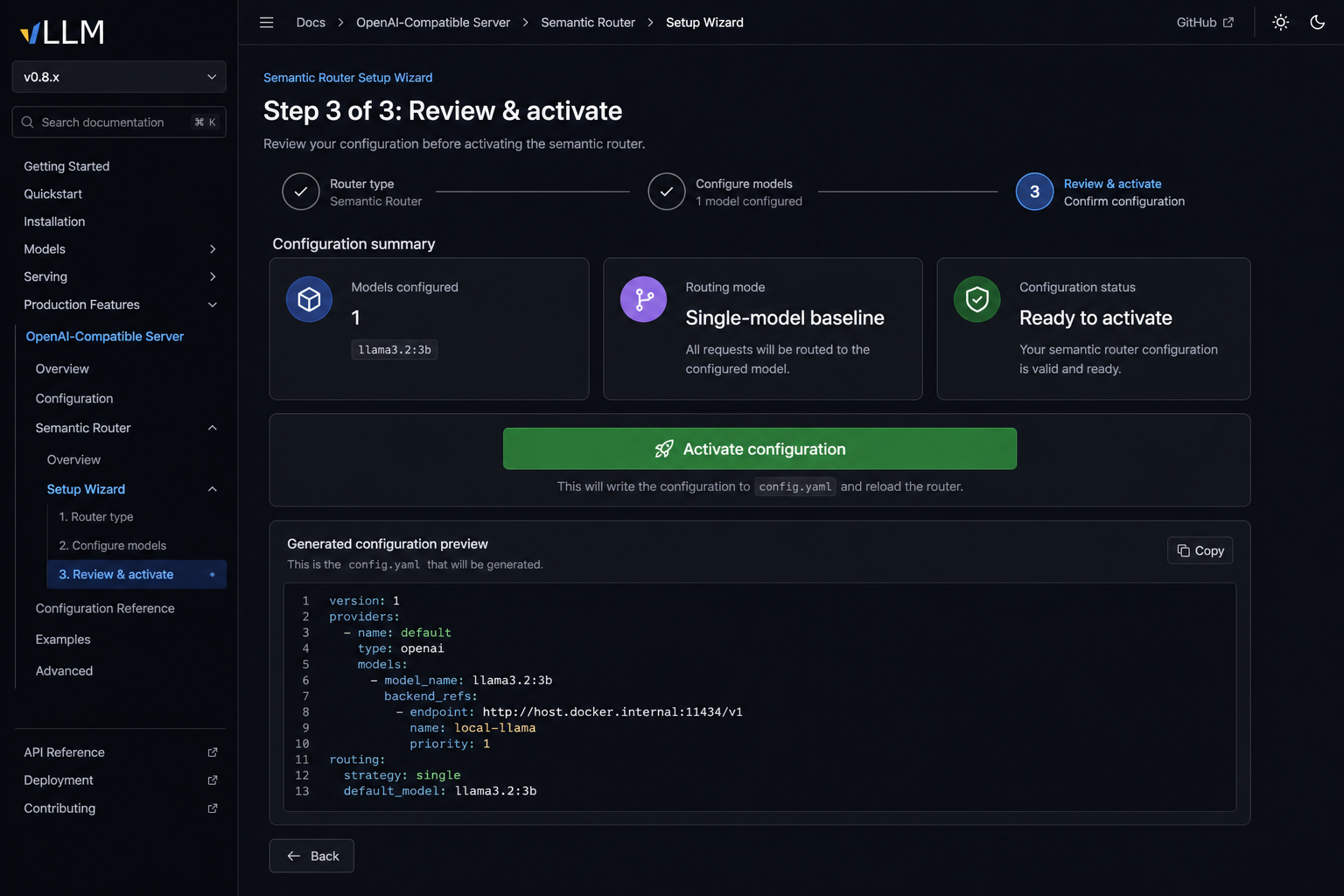
Activation writes config.yaml to the current directory and exits setup mode. Envoy starts on port 8899 and routes requests through Semantic Router to your Ollama backend.
7. Test through Semantic Router
Send a request through the router proxy:
curl http://localhost:8899/v1/chat/completions \
  -H "Content-Type: application/json" \
  -d '{
    "model": "llama3.2:3b",
    "messages": [{"role": "user", "content": "Hello from Semantic Router!"}]
  }'
If you kept the default single-model baseline, you can also use the auto-routing alias:
curl http://localhost:8899/v1/chat/completions \
  -H "Content-Type: application/json" \
  -d '{
    "model": "vllm-sr/auto",
    "messages": [{"role": "user", "content": "Hello from Semantic Router!"}]
  }'
A JSON chat completion response means Ollama is wired correctly.
YAML configuration (advanced)
If you prefer to edit YAML directly instead of the dashboard, add a model entry like this:
version: v0.3

providers:
  defaults:
    default_model: llama3.2:3b
  models:
    - name: llama3.2:3b
      provider_model_id: llama3.2:3b
      api_format: openai
      backend_refs:
        - name: local-ollama
          endpoint: host.docker.internal:11434
          protocol: http
          weight: 100

routing:
  modelCards:
    - name: llama3.2:3b
  decisions:
    - name: default-route
      description: Route all requests to the local Ollama model.
      priority: 100
      rules:
        operator: AND
        conditions: []
      modelRefs:
        - model: llama3.2:3b
          use_reasoning: false
Validate and serve:
vllm-sr validate --config config.yaml
vllm-sr serve --config config.yaml
Troubleshooting
Router cannot reach Ollama
- Use
host.docker.internal:11434in config, notlocalhost:11434. Inside the router container,localhostrefers to the container itself. - Confirm Ollama is listening on a container-reachable address. The default
127.0.0.1:11434binding is not sufficient; configureOLLAMA_HOSTas shown above and restart Ollama. - The local runtime adds a
host.docker.internal:host-gatewaymapping for Docker or Podman. This provides name resolution and routing, not a proxy for the host loopback interface. If connectivity still fails, see Container connectivity. - Confirm Ollama responds on the host:
curl http://localhost:11434/v1/models.
Model not found or 404 from Ollama
- The Model name in Semantic Router must match the Ollama tag exactly (
llama3.2:3b, notllama3.2). - Run
ollama listand pull the tag if it is missing:ollama pull <tag>.
Slow first request
- Ollama loads models on demand. The first request after idle time may take longer while weights are loaded into memory.
Reasoning models (Qwen3 and similar)
- Some reasoning models spend the full token budget on internal thinking when called through Ollama's OpenAI-compatible endpoint. For advanced local setups with Qwen3-style models, see
bench/grounded_fusion/ollama_proxy.pyin the repository.
Next steps
- Add more backends and turn on semantic routing presets in the dashboard
- Read the Configuration guide for decisions, signals, and model cards
- See the agentgateway homelab blog post for a multi-model setup that includes local Ollama